Set up HomePod or HomePod mini
Learn how to set up HomePod or HomePod mini using your iPhone or iPad.
Prepare your iPhone or iPad to set up HomePod
You need an iPhone or iPad to set up HomePod. You can't set up HomePod with a Mac.
Update your iPhone or iPad to the latest version of iOS or iPadOS.
HomePod speakers use the Wi-Fi network that your iPhone or iPad is connected to. Learn how to connect to Wi-Fi on your iPhone or iPad and about recommended settings for Wi-Fi routers.*
*Personal hotspots aren't recommended.
Plug HomePod into power and wait for a chime
Place HomePod or HomePod mini on a solid surface with at least 6 inches of space around your HomePod speaker.
Plug your HomePod speaker into power.
Wait for a chime and a pulsing white light to appear on the top of your HomePod speaker.

Hold your iPhone or iPad close to HomePod
Unlock your iPhone or iPad and hold it next to HomePod or HomePod mini.
Tap Set Up when it appears on your device's screen. If the setup screen doesn't appear, try locking then unlocking your device.
Learn what to do if the HomePod setup screen still doesn't appear
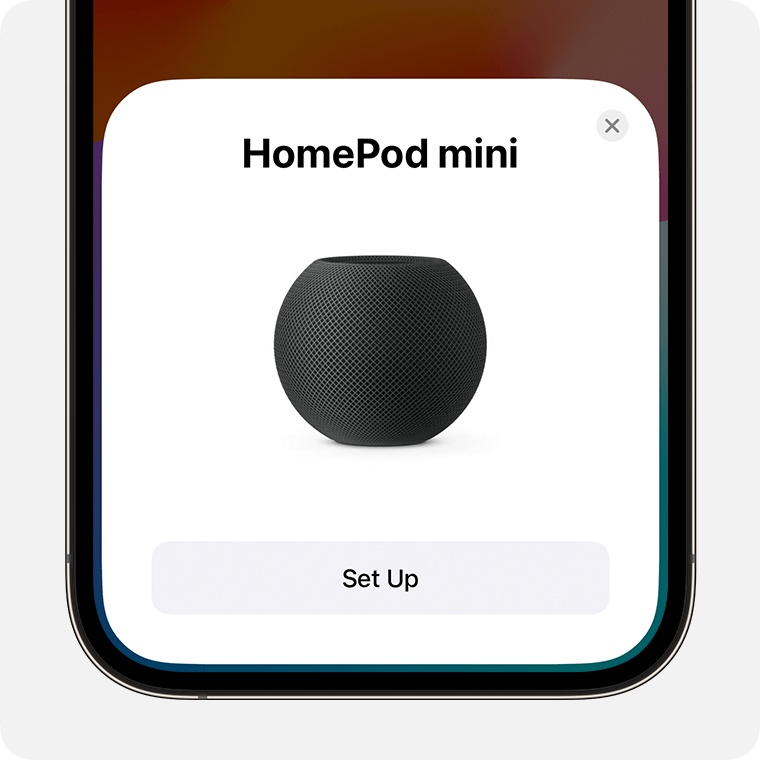
Hold your iPhone or iPad over HomePod
When asked, center HomePod or HomePod mini in the viewfinder on your iPhone or iPad. If you can't use your camera, tap Enter Passcode Manually. Then, Siri will respond with a four-digit passcode to enter on your device.
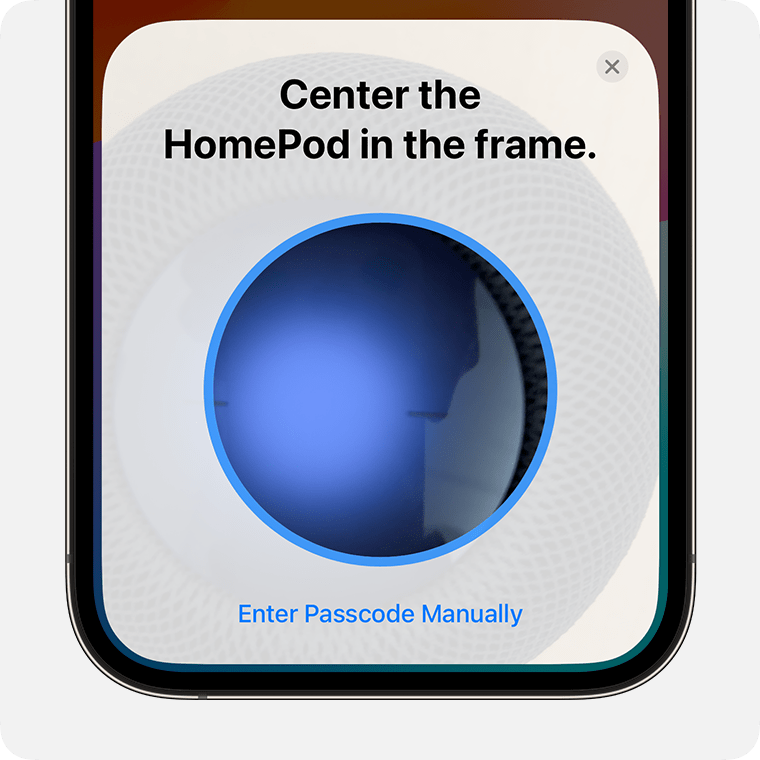
Customize your HomePod settings
Follow the onscreen instructions to choose your settings. You can also manage HomePod settings in the Home app after setup.
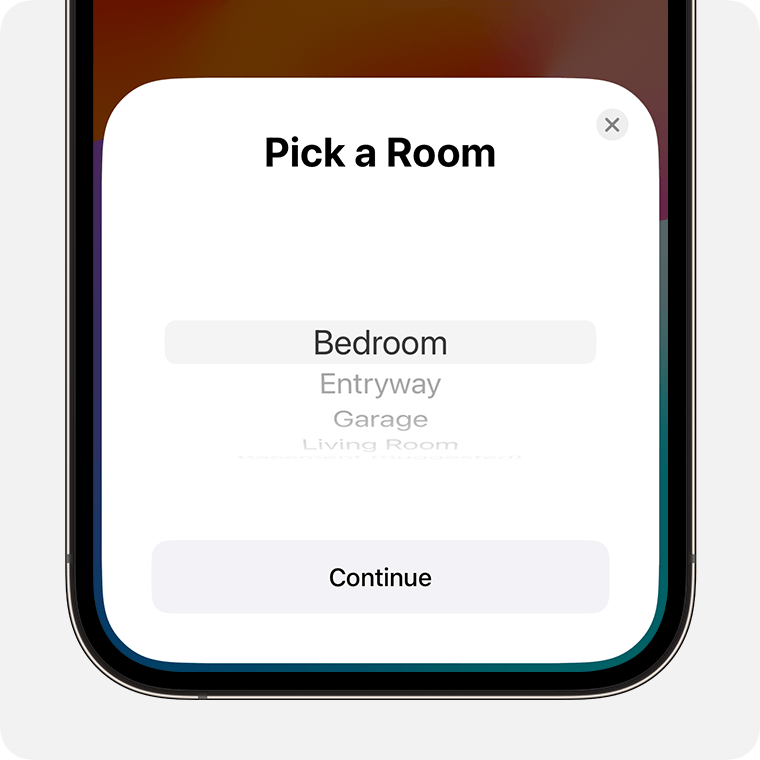
Wait for setup and configuration to complete
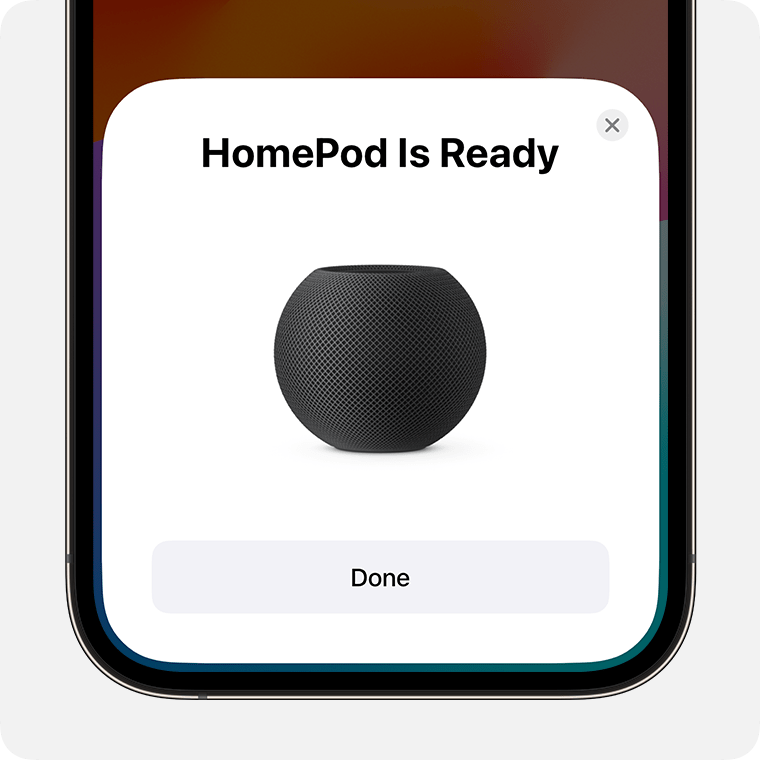
Wait for HomePod or HomePod mini to finish setup, then tap Done.
After setup, HomePod continues configuration in the Home app.
Configuration times may vary. You can play audio using Siri on HomePod during configuration.
Get more help with HomePod setup
Learn what to do if you can't set up HomePod or HomePod mini.
HomePod can connect to many campus or business 802.1X Wi-Fi networks. Learn which networks are supported on HomePod and how to connect to them.